Popular Posts
-
Elegant Themes has been developing WordPress themes for a long time. It has developed lots of popular themes including Divi, Nexus, Fa...
-
Engagement, engagement, engagement. My brother Lee and I are web developers and entrepreneurs. We try to capitalize on every opportunity a...
-
League Table Premium WordPress Plugin makes it able to add in a successful manner customizable, and responsive tables to your Word...
-
Hello there! My blog post 'Spikes' was published on Sept. 22nd; however, the post before it called 'Flow' was published on...
-
Quick question: Do you know what IFC, The New York Post, The Walt Disney Company, and WNBA have in common? Ponder the answer for a momen...
-
WordPress has evolved to be much more than just a blogging platform, from online stores to full-on business platforms, there is ve...
-
Recently, WPZoom themes have released an all new WordPress theme named Academica Pro 3.0 and come with a responsive design means your site...
-
Hi, I am new to wordpress, and still figuring things out. I have been experimenting with different themes, and have been changing settings...
-
Amelia is a Premium WordPress Theme is Perfect for any Blog or Magazine.Theme has a unique design with a lot of options, that can help...
-
The best Black Friday / Cyber Monday WordPress Deals in 2016 all in one place. If you missed the huge deals last year, be sure to get in...


Top Five Best WordPress FAQ Plugins (2017)
Why are FAQs so effective? Well, if you've got a burning question you need to ask, chances are, someone else has already asked it. You're wasting a lot of your support team's time — or, as is usually the case with smaller businesses, your own time — repeating the same boring answers to the same boring questions.
You can cut your support team some serious slack by compiling a list of the most commonly asked questions. You can quickly refer users to this list, or visitors might stumble upon it themselves, saving you the trouble of responding to an email altogether.
More importantly, having to ask a question and wait for an answer delays the buying decision. During that time, the potential customer could go cold on the purchase — especially if they were making an impulse buy — or it becomes a race against your competitor's support team to see who can reply first and close the sale.
In other words, FAQs skip all of the hassles, giving customers everything they need to know right from the get go. That means less work for you and additional conversions — what more could you ask for?
In today's post, we're going to help you add FAQ sections to your website, by introducing you to five of the very best FAQ plugins for WordPress. There's a mix of free and premium plugins, so there's something for everyone, regardless of budget.
Listed in no particular order:
1. Ultimate FAQ ($30)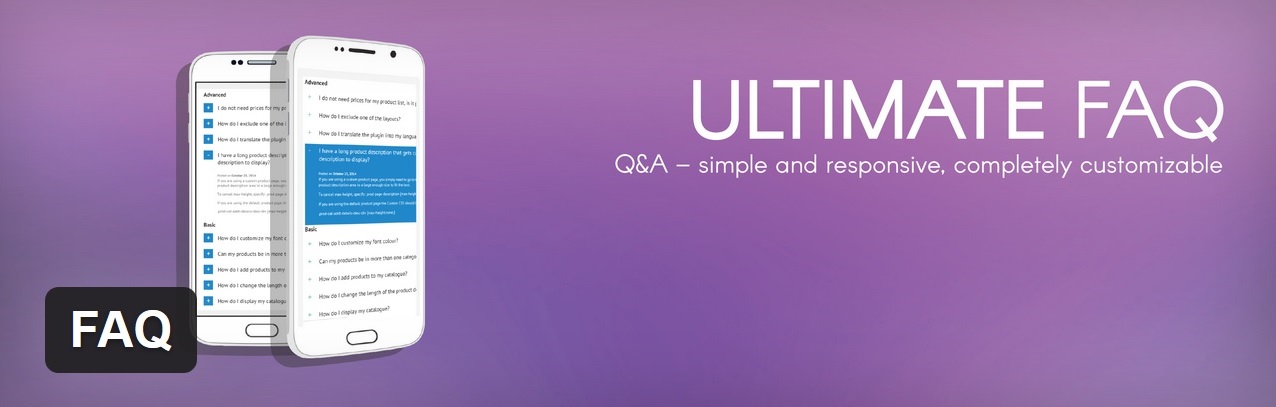
Up first we have the aptly named Ultimate FAQ plugin. You can use it to build stunning accordion-style FAQ sections, which come in five layout styles: default, color blocks, block, list, and all answers displayed.
Better still, each layout offers a variety of styling options. You can customize colors, fonts, icons, sizes, and borders, letting you build an FAQ section that fits with the color scheme of the rest of your site.
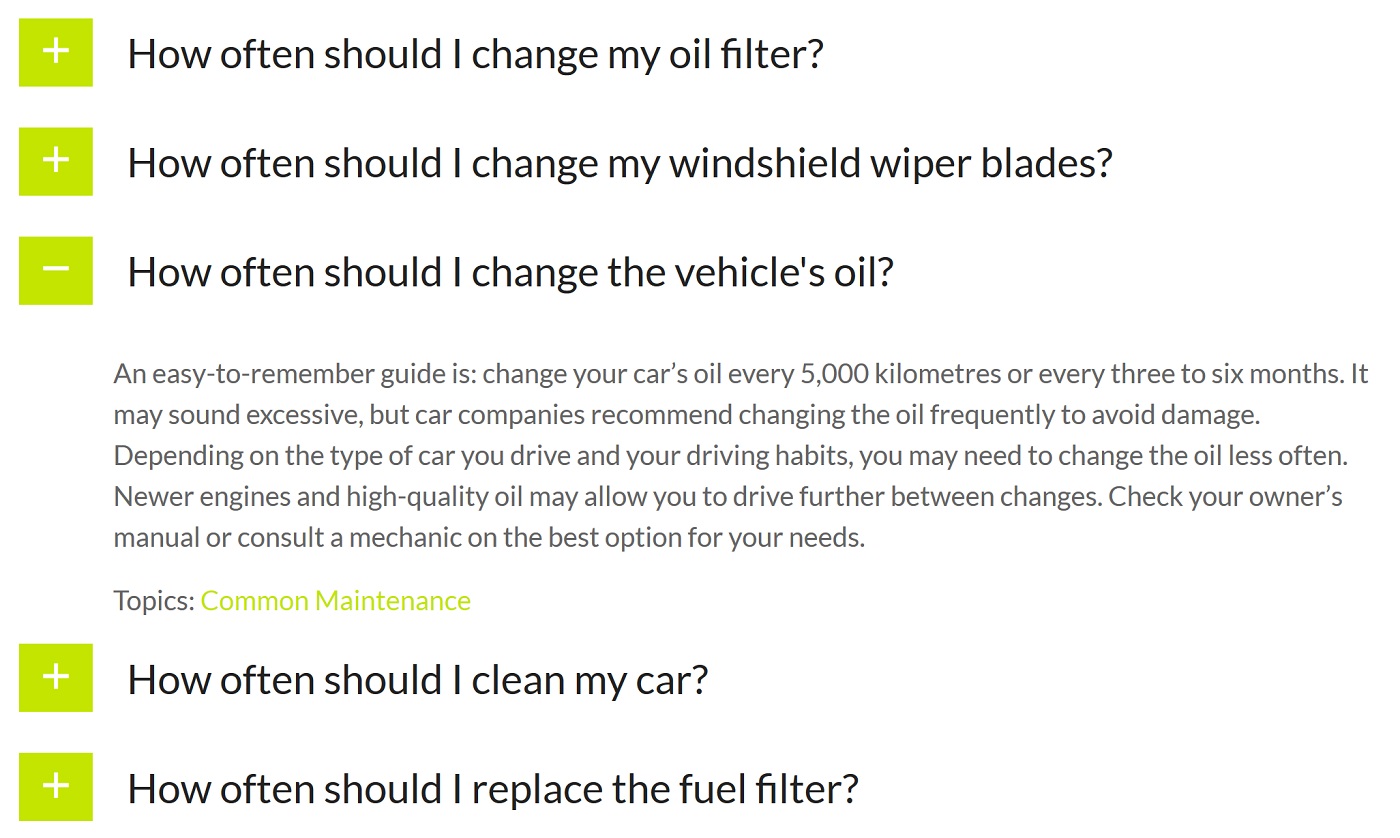
When visitors click the question they want, the answer opens up, accordion style.
Each layout looks great, listing the questions one after the next. If the visitor is interested in a particular question, they can click it to toggle the answer into view. This prevents an unnecessary "wall of text" as visitors can pick and choose what they want to read. (The obvious exception is the "all answers" layout, which displays all questions and answers by default.)
Of course, any good FAQ section should answer the burning questions that visitors are asking. To accommodate this, visitors can leave questions from the front-end of your website — all you need to do is add a simple shortcode to your site. You can even open the floor for visitors to answer questions, just by clicking activate on this handy little feature. Every time a new question or answer is submitted, you'll receive a notification in the WordPress admin.
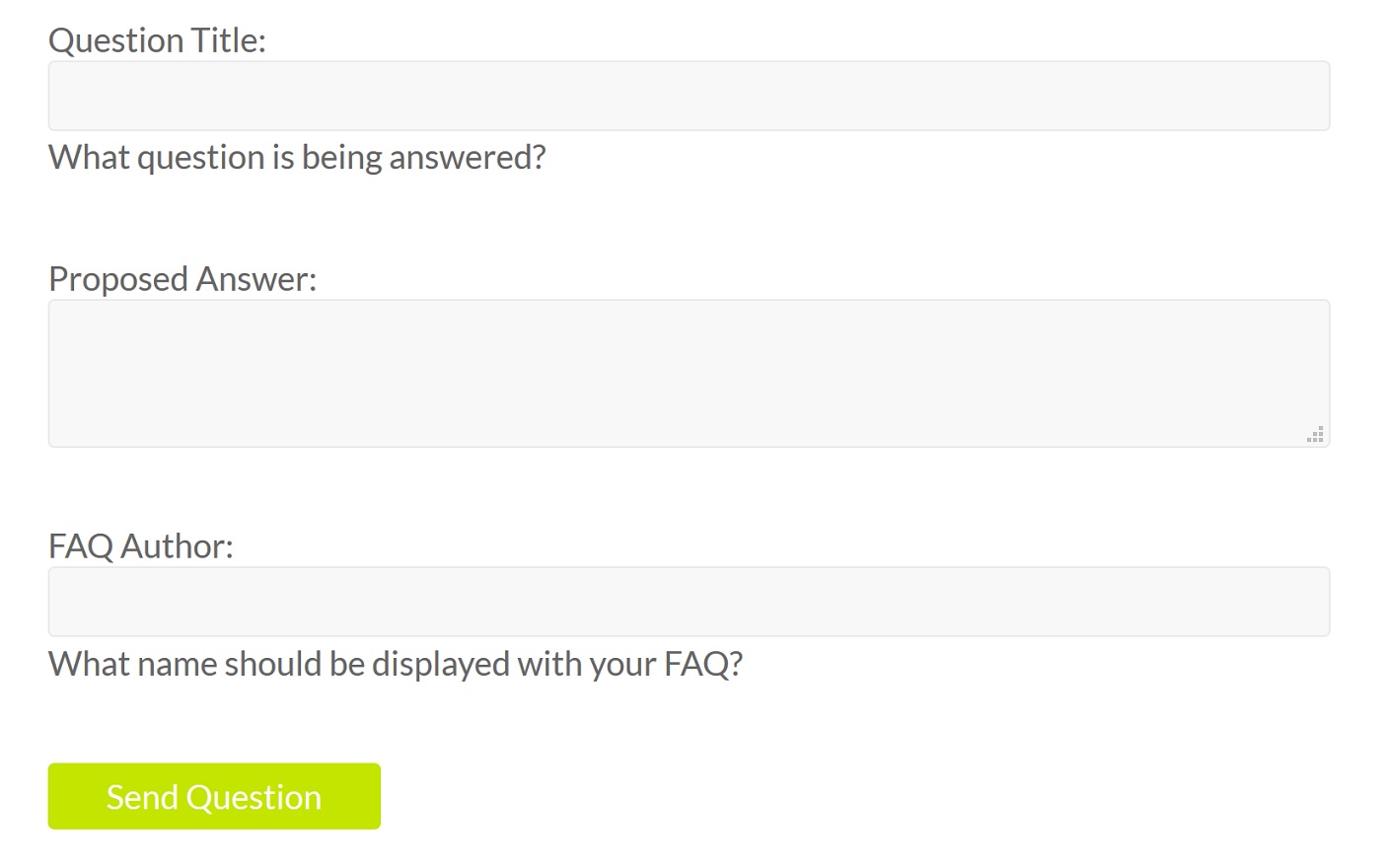
Visitors can ask questions via a simple form.
As your FAQ section begins to build up, you can give certain questions priority by bumping them to the top of the list using drag-and-drop. And, to help your visitors navigate your FAQ section, the plugin lets you assign categories, tags, and authors to each question.
Going one step further, visitors can instantly jump to a question they need answering with Ultimate FAQ's search function. This is probably my favorite of the plugin's features, as it supports auto-complete question titles and AJAX to return search results without needing to refresh the page.
If that still isn't enough, Ultimate FAQ also integrates with WooCommerce. This means you can add FAQs on a product-by-product basis — a good way to eliminate buyer resistance and encourage a visitor to take the plunge and open their wallet.
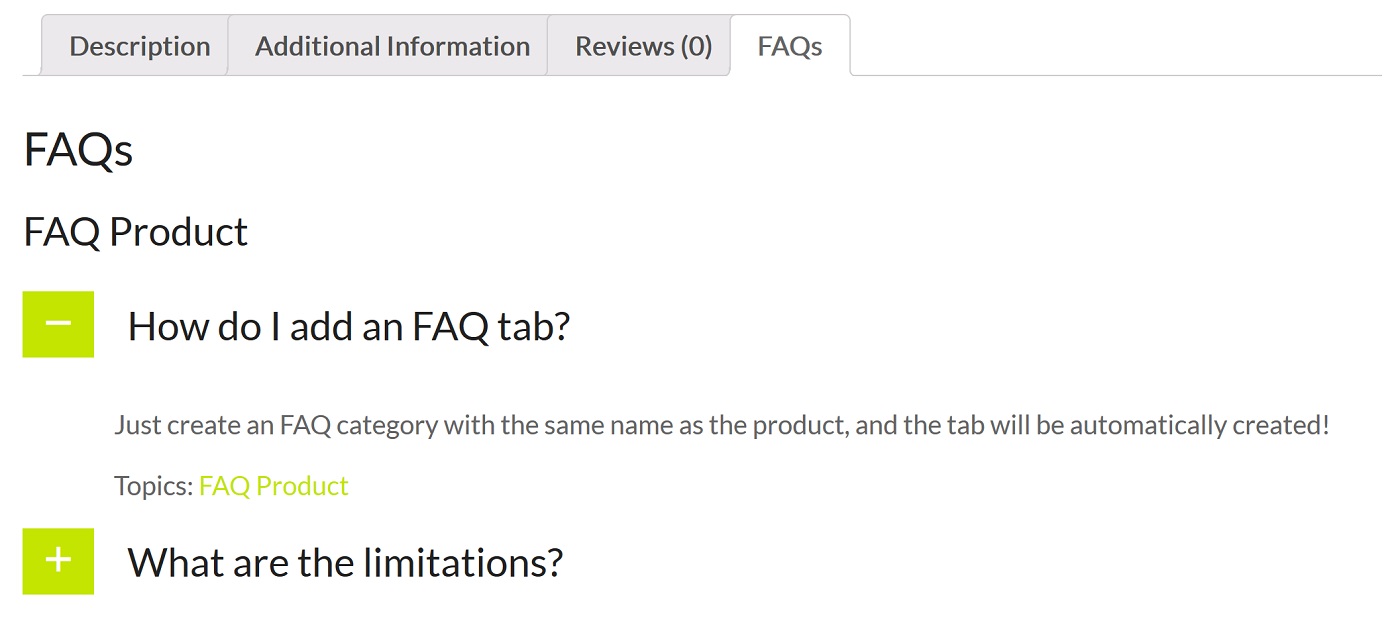
Add an FAQ tab to any of your WooCommerce product pages.
Other useful features include social sharing buttons, schema markup for FAQ SEO, and the ability to import/export your FAQs.
If you like what you see but don't have the budget for this one, a more restricted version of Ultimate FAQ is available for free from the official plugin directory. The Lite version of the plugin comes without some of the styling options, plus visitors are unable to submit/answer questions. However, the plugin is still one of the most capable free FAQ plugins, so well worth a look.
2. HTML5 Responsive FAQ (FREE)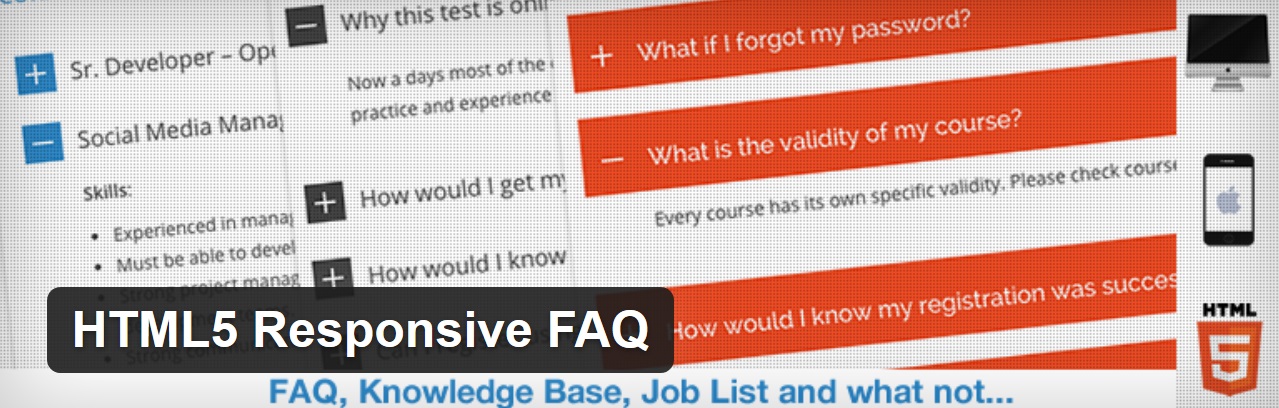
Next, we have the first of today's completely free options: HTML5 Responsive FAQ. And as the name implies, this plugin is mobile optimized, ensuring it looks great on smaller devices.
The plugin lets you create FAQ questions and answers as a custom post type. You then get to assign each question to one of your blog categories.
Adding the FAQ section to your site is super-easy, too. Just copy and paste a simple shortcode, then add the categories you'd like to include. And because you can assign a question to multiple categories, you can have the same ones popping up in a variety of FAQ sections — perfect for the popular questions that visitors ask again and again. Visitors then click on the questions they want to read, and the answers will open up like an accordion.
All styling options are housed on one convenient screen. From here, you can choose the bullet colors, font size, and the gap between questions. You can also select a header type for the question text — for example, you might go with H3 tags.
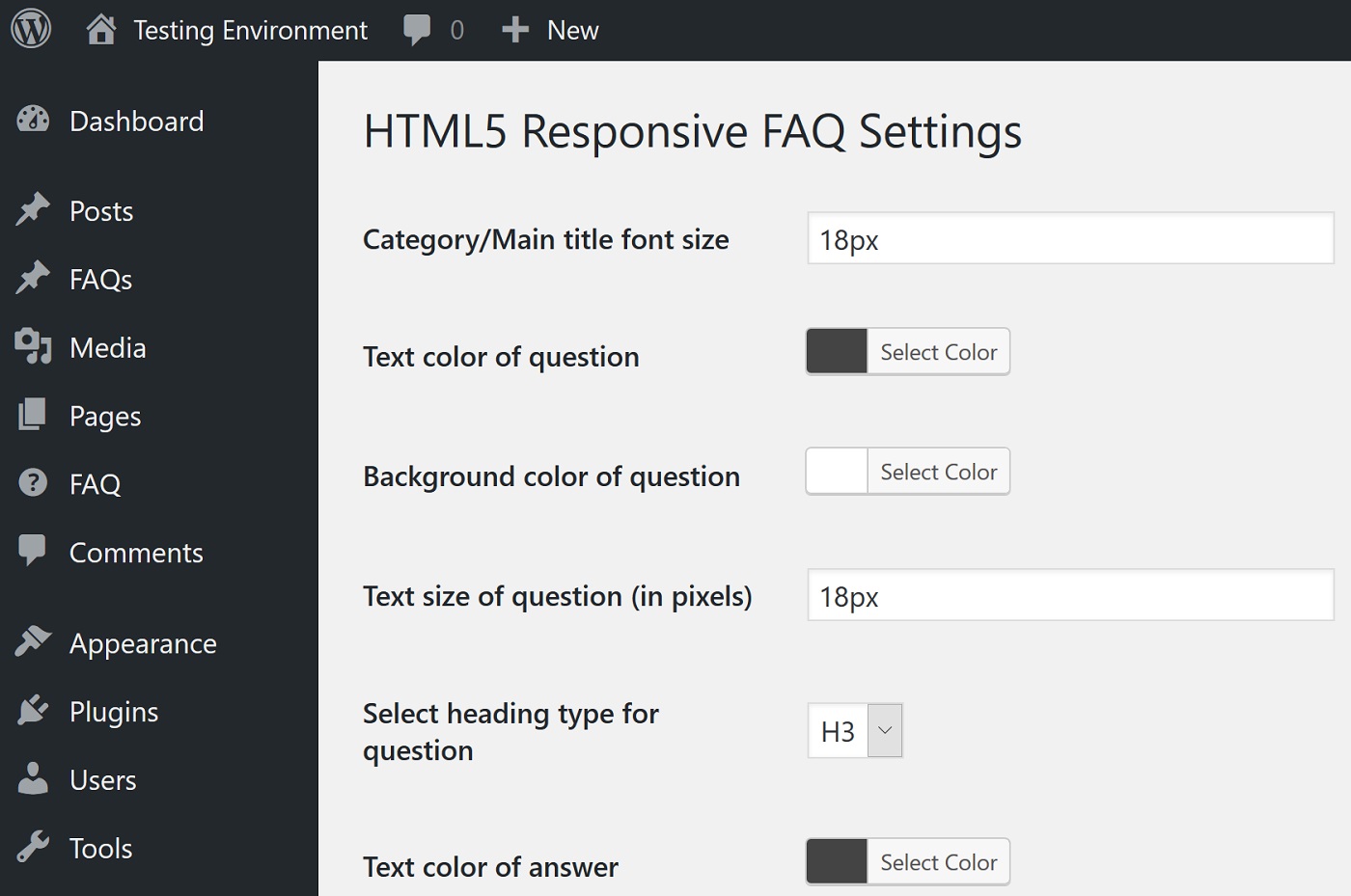
Everything you need to design your FAQ section is available in one space.
Easy to setup then, but what about the FAQ section the plugin produces? Are they up to scratch? Fortunately, the answer is "yes" — they look great, especially when kitted out with your styling choices.
3. Arconix FAQ (FREE)
Arconix is another awesome free FAQ plugin, and alongside HTML5 Responsive FAQ, the most popular in its category. The plugin is shortcode-driven, too, letting you add an FAQ section anywhere on your site with the minimal amount of fuss.
The plugin supports two types of FAQs: a jQuery toggle and accordion box. You can also decide whether you want all answers displayed as default, or if the visitor has to click to access them.
Instead of assigning questions to categories, Arconix FAQ requires you to type in FAQ "groups" — these function like your typical WordPress tags. You can attach an unlimited number of these groups to each question, which means questions can appear in multiple FAQ lists. To configure your FAQ section, you just need to add to the shortcode which groups you want to display.
Styling options are thin on the ground on this one, but if you're looking to build a purely functional FAQ section using a free plugin, you won't find much better than Arconix FAQ.
4. Tribulent FAQ ($35)
Tribulent FAQ is a high-quality premium FAQ plugin. It comes with a number of cool features that make it a better option than the free plugins, provided you have $35 to spare.
For starters, the plugin lets visitors ask question from the front-end of your website — you can also decide whether a visitor must be registered prior to asking away. Each user submission then sits in the WordPress dashboard, waiting for you to approve it, then publish an answer. And, when you hit publish, the asker will receive an email notification pointing to said answer.
In fact, most of Tribulent FAQ's best features are geared towards front-end users. For example, there's a handy search function that lets visitors browse the depths of your FAQs. Visitors can search within a specific category (or site-wide), and the algorithm returns both questions and answers relevant to the search query.
Tribulent's FAQ sections are among the best you'll find, too, with beautiful, sliding accordion effects. There is a huge array of customization options, plus you can even add stylish social sharing buttons to your answers.
5. FAQPlus ($19)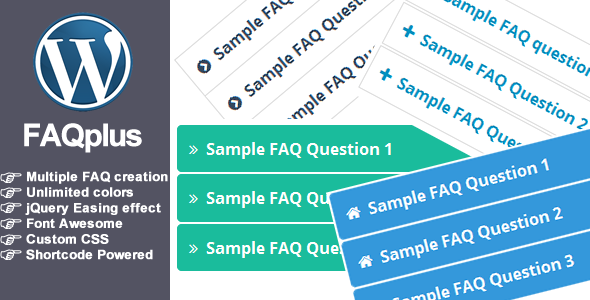
If your main criteria for choosing an FAQ plugin is customization, look no further than FAQPlus. It lets you add FAQs just by pasting a shortcode, meaning you can display them anywhere on your website — including widget spaces.
As mentioned, FAQPlus is rich in styling options. There are 25 animation effects, multiple layouts, unlimited colors, and FontAwesome icons. You can apply different stylings to each question within a single FAQ section, too.
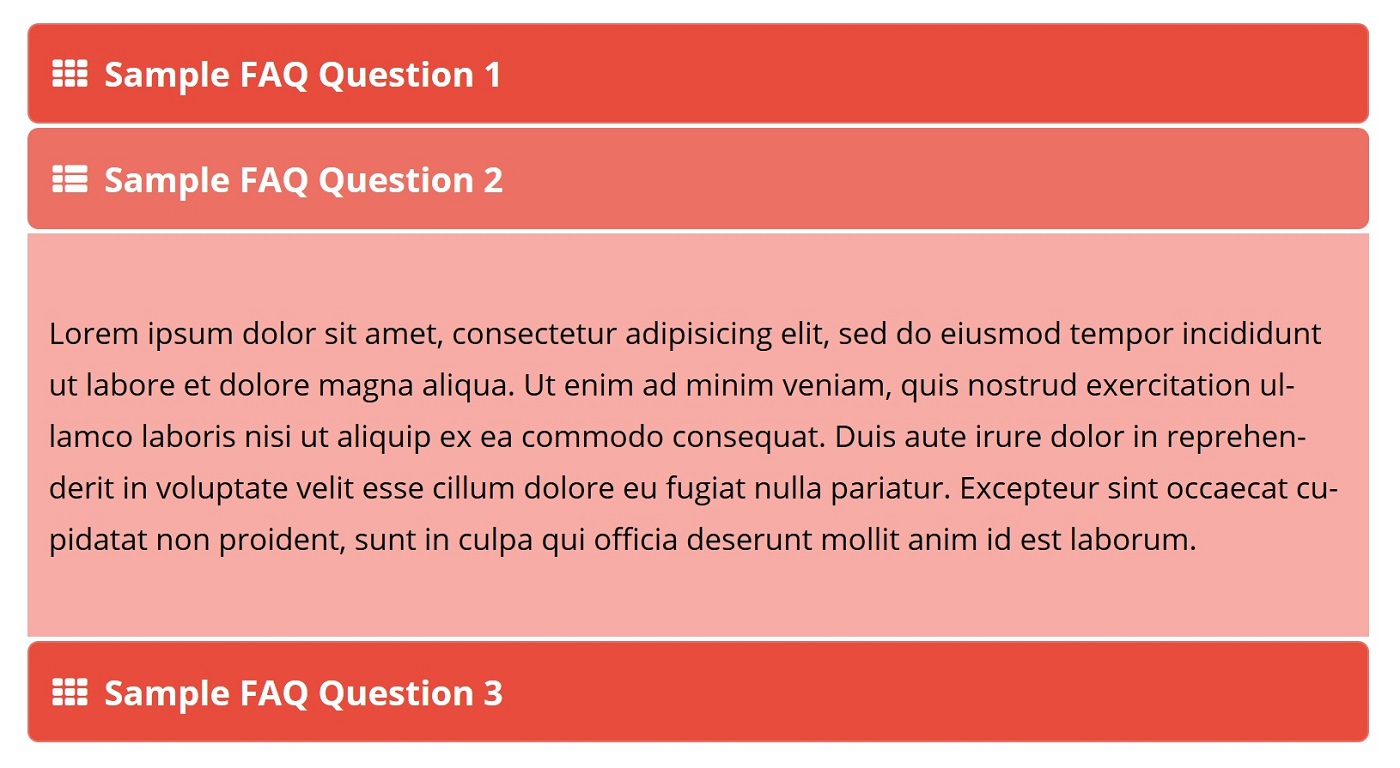
The accordion-style FAQs boast beautiful style.
You can also fill your FAQ sections with all kinds of rich content, including images and videos — try this if you want to make your answers easier to digest. Each question is compiled into an FAQ list, reordered using drag-and-drop, and then assigned a unique shortcode.
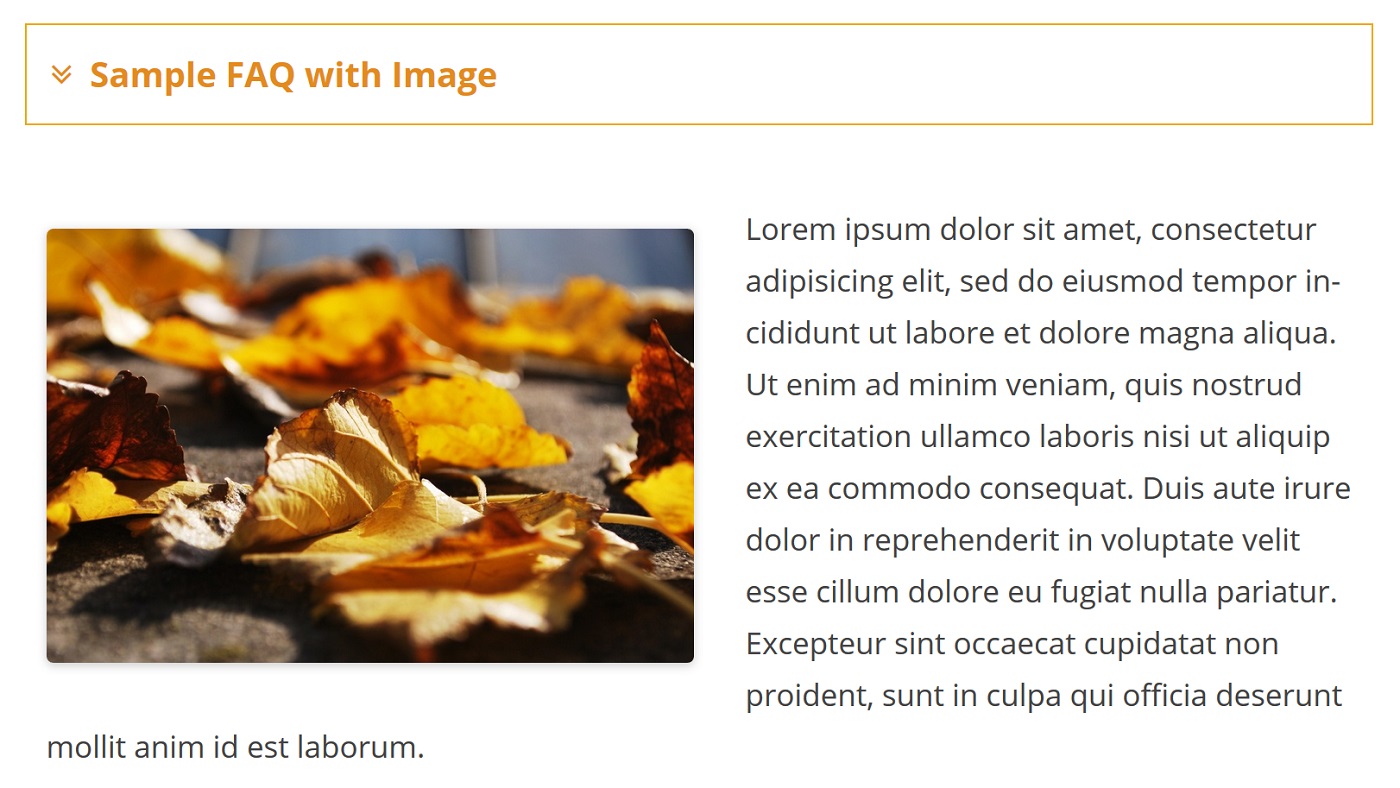
Make your FAQs more engaging with images and videos.
Visitors can trigger answers either with a click or simply by hovering — configure this setting to your liking. And, if you want to work your FAQ sections into some complex custom layouts, FAQPlus is fully compatible with CodeCanyon's best-selling plugin, Visual Composer.
Final ThoughtsIf you're trying to build a successful website, an FAQ section could just be the cog you've been missing. When you know what information your visitors require, your FAQs can bat away any buyer objections — now there's nothing stopping you from closing that sale.
As such, a highly informative and well-designed FAQ section could generate a healthy return — as well as save you a ton of work. All of the plugins featured today are easy to use and build great-looking FAQs. The only question you need to ask yourself really is: free or premium?
In my opinion, premium is usually the better choice, provided that you have the budget for it. Premium FAQ plugins typically come with better designs, more extensive customization options, and support additional features — most usefully, front-end visitor-submitted questions and answers. And with price tags of under $40, just one or two additional sales means the plugin has already paid for itself — not bad at all!
Used/using any of these? Any others? Thoughts?
Related posts
Source: Top Five Best WordPress FAQ Plugins (2017)
0 comments:
Post a Comment