Popular Posts
-
Engagement, engagement, engagement. My brother Lee and I are web developers and entrepreneurs. We try to capitalize on every opportunity a...
-
Quick question: Do you know what IFC, The New York Post, The Walt Disney Company, and WNBA have in common? Ponder the answer for a momen...
-
The best Black Friday / Cyber Monday WordPress Deals in 2016 all in one place. If you missed the huge deals last year, be sure to get in...
-
Hello there! My blog post 'Spikes' was published on Sept. 22nd; however, the post before it called 'Flow' was published on...
-
Recently, WPZoom themes have released an all new WordPress theme named Academica Pro 3.0 and come with a responsive design means your site...
-
Despite what you might have heard, blogging is not just for angsty teenagers. It's for businesses, too. Not only can blogs help you at...
-
What can you do with today's deal? You can build a website. Hell, you can build 100 of them. Or a portfolio. Blog? That too. E-comme...
-
WordPress has evolved to be much more than just a blogging platform, from online stores to full-on business platforms, there is ve...
-
According to my WordPress stats, my blog received its 2 millionth page view this week. Going by Google Analytics, which I didn't...
-
It's definitely one of the factors affecting the load speed, as all of the content (images, text, video, audio), HTML, CSS, JavaScript...


Upcoming WordPress Blog Previews to Increase User Engagement
Displaying your latest news or blogs easily on your website is one of WordPress's most important functions. WordPress started out as a blogging platform and has historically offered a range of tools and features to enhance your site, providing your users with easy ways to access your content.
Your latest posts page (aka your latest articles or blogs page) once set up will let your users easily see all of your most recently published blogs.
People love news and while it's great to see a list of your most recently published articles, wouldn't it be even better if you could show your users a preview of some of your upcoming articles? That is what we are going to look at today and how it can be used to improve your user engagement.
Creating Future PostsWordPress already comes with a really great utility for scheduling your posts to go live in the future, this feature known as the post scheduler lets you choose the date and time that your upcoming blog will go live.
Given that WordPress already provides a way to automatically publish your upcoming articles, what we need to do is output a listing of upcoming scheduled posts that your readers can get a sample of to entice them to come back later.
User Engagement with Upcoming Blog PreviewCreating a post preview might seem simple but the overall point is to provide something different to your viewers experience.
If your readers are able to see that you have an upcoming article and when it will be published they are more likely to engage with you and hopefully become solid regular traffic for your site.
The example that we will be creating today shows an upcoming post preview and a simple action to get in contact, however you could extend this so that users are prompted to sign up to your newsletter or another type of traceable engagement.
What You Will Need to KnowYou should have a basic understanding of WordPress, Plugins Development and Object Oriented Design if you want to make the most of this lesson, we won't be doing anything overly complicated however. If you're keen on brushing up on your fundamentals, check out Object Orientated Development with WordPress.
Developing This as a Child Theme Function or a Plugin?Since we want to extend the way in which our site functions the first thought should be "lets make it a plugin!". However because we are trying to extend the way in which our news feed works we are limited in what we can achieve using just actions and filters alone.
The reason for this is because every theme is different and there are no reliable actions or filters we can use to display our upcoming post previews before the main blog listing.
That being the case we could define everything in our child theme; however that has it's own drawbacks, one of which is if we ever want to change the theme we will lose our functionality.
What we need to do is to use a hybrid approach where we create a plugin that defines all of our functionality using hooks and filters and then use shortcodes, widgets and display functions to handle the output of the upcoming previews in exactly the places we need (i.e on our blog archive page before our main list of articles).
While this is generally frowned upon (you should either add all your functionality to a plugin or to a theme), it's one the more rare edge cases where we just don't have the hooks or ability to output our plugin's functionality in the right location so we need to modify our child theme to make it perfect.
Which Template Will Be Displaying My Blogs?This actually can be tricky to determine as WordPress can show your blog archive listing using several templates files.
How your blog listing will be displayed will be dependent on what you have set for your 'Reading Settings' and also the design of your theme.
Your website will most likely be displaying your posts archive using one your theme's templates.
Depending on how you have your Reading Settings set up will determine which template gets used.
When you're finished you will have something similar to what you see below.
The post preview shows you a sample of your next upcoming article, displaying the title, quick summary except along with information about when it will be published.

As you can see it offers a distinct contrast against your other recently published articles, showcasing your upcoming post with preview text and also an interactive author profile (so that users can see who you are and what other posts you have created).
The look and feel will be dependent on your theme, however since everything has its own class you can easily customise this to look and feel exactly as you want!
Get the Source Code and Copy It to Your ServerLets start by downloading the source code for the plugin from the SitePoint GitHub repository.
The code will be contained inside of a single folder with several sub-directories for the CSS and JS elements. It should look similar to below.

Copy the plugin to your plugins directory and activate it. Once you have this activated you will be ready to go!
Looking at the HighlightsFor the sake of simplicity I will outline the most important and interesting elements of the plugin in the next few sections. This should be enough help you understand how it all works.
If you are interested you should look through everything and possibly extend it to suit your own purposes.
Building the Admin InterfaceSince we want to extend the way in which blog posts work we will be modifying the add / edit post admin screen to provide additional options.
Your screen should look fairly unchanged except for the 'Publish' meta box displayed generally on the far right hand corner of your screen.

Just below the 'Schedule For' options you will see a new section called 'Upcoming Preview'. This section will let you decide on a post by post basis if your scheduled post will have an upcoming preview.
If you want a post preview you simply select the enable option and you will get two additional options.
Display Content with the 'More' TagUsing this option will mean that when your preview is being displayed on the front-end of your website it will display ALL of your content on the front end up until it finds WordPress's 'Read More' button.

In this example when displayed the post preview will show the image and the text up until the 'MORE' tag has been reached.
Displaying Content up to X Number of WordsUsing this option you will be able to determine how many 'words' are displayed from your posts content area. This means that you can display as many or as few words as you like to be displayed on the front end.
The only real drawback from this approach is that since the content is trimmed to a set length any images or visual content you use will be stripped out (only your content will be pulled through).

In this example when used as a preview the post will show exactly 25 words and then finish with an ellipses / the call to action for the user.
Inside of the upcoming_posts_preview.php file look for the magic __construct function. Inside here we have hooked onto the post_submitbox_misc_actions hook which is used to output additional code just after the Schedule For options for each post.
We attach our function calledadd_post_preview_meta_options so that we can output our options for enabling / disabling the post previews (and settings such as choosing to display up to the read more link or via trimmed words).
Firstly we only want to execute if we are on the post post type which is why we declare the global $post_type.
global $post, $post_type; //determine if we are on a post if('post' == $post_type){ }When we are on a post we will collect our main options. These variables will be used to determine if this post will have its post preview enabled or disabled. If enabled it also determines the type of method that will be chosen (showing content up to the 'more' button or showing X number of words). We use ternary operators so that we can check if our post has any previous set values and if so assign them accordingly (if not we default to false or an empty string).
//determine if we have enabled / disabled post previews $upcoming_preview_status = ( get_post_meta( $post->ID, 'upcoming_preview_status', true) ? get_post_meta( $post->ID, 'upcoming_preview_status', true) : 'false' ); //determines the type of post preview $upcoming_preview_type = ( get_post_meta( $post->ID, 'upcoming_preview_type', true) ? get_post_meta( $post->ID, 'upcoming_preview_type', true) : 'false' ); //determines the number of words shown per post preview (if we are displaying a trimmed excerpt) $upcoming_preview_type_x_words = ( get_post_meta( $post->ID, 'upcoming_preview_x_words_number', true) ? get_post_meta( $post->ID, 'upcoming_preview_x_words_number', true) : '' );We define radio buttons for the post that let the user enable or disable the upcoming post preview. We build these like any other form elements by supplying a name and id for these elements and determining which button should be checked (the values we collect before ensure we can default check the correct elements).

After these basic radio buttons are defined we define a secondary set that are only displayed once we select to Enable upcoming preview, this will determine the type of upcoming post preview we will be executing. It will be either:

If we select that we want to Show X number of words another set of information is displayed, this time it shows a number field where we can select the number of words we want to display.

To make the plugin easy to use and to mimic how WordPress designs their admin interface, there is a small amount of jQuery used by the plugin.
Our JS script called upcoming_posts_preview_admin_scripts.js is loaded onto on the admin side of WordPress and is used to make interacting with our plugin easier.
Our first main interactivity is one used for the toggling of the 'enabled' / 'disabled' states for the post preview. We slide the container of secondary options up or down depending on what we have chosen.
//toggles the main enabled / disabled function upcoming_post_preview_toggle_display(){ //get current state, if we have enabled it, slide down else slide up chosen_preview_status = preview_status.filter(':checked').val(); //if we have chosen a post preview if(chosen_preview_status == 'true'){ preview_content_settings.slideDown('fast'); } //else we didn't choose a post preview else if(chosen_preview_status == 'false'){ preview_content_settings.slideUp('fast'); //reset the X number of characters to display preview_x_number_of_items.val(''); } } upcoming_post_preview_toggle_display();We run this function just as we load and also attach it to the radio buttons so when we change our state we can update what happens.
//when we change status, toggle container accordingly preview_status.on('click', upcoming_post_preview_toggle_display);Our secondary helper function is used when we have chosen to enable a post preview. If we determine we want to show X number of words then we need to slide down an additional field which is the 'number of words' that will be used.
//Toggling the main settings (display up to more tag or X number of words) function upcoming_post_preview_setting_display(){ //get the currently chosen option setting var chosen_preview_type = preview_types.filter(':checked').val(); //if we chose to display content up to the 'more' tag if(chosen_preview_type == 'upcoming_preview_more_tag'){ preview_content_sub_settings.slideUp('fast'); preview_x_number_of_items.removeAttr('required'); } //if we chose to display X number of words else if(chosen_preview_type == 'upcoming_preview_x_words'){ preview_content_sub_settings.slideDown('fast'); //set the number of words field to have the 'required' attribute preview_x_number_of_items.attr('required','required'); } } upcoming_post_preview_setting_display();This function happens right when we load and also when we change our status type.
//when we choose our type of upcoming preview that will be displayed, toggle additional options if required preview_types.on('click', upcoming_post_preview_setting_display); Building Your Upcoming Post Preview HTMLBefore your post preview is displayed it first has to be built. We use a function called get_upcoming_post_preview to do this.
This function takes in an optional set of arguments and is used to fetch your most recent upcoming scheduled post.
The function defines its default arguments. These will be used in our main query shortly so that the website knows which posts to pull and how many.
$arguments = array( 'number_of_previews' => 1, 'post_id' => false );If we passed in any optional arguments we check to see if they exist in our arguments array (our defaults). If they do exists we update them (as we are overriding the default functionality).
//If we passed in arguments, copy new arguments if($optional_arguments){ foreach($optional_arguments as $key => $value){ if(array_key_exists($key, $arguments)){ $arguments[$key] = $value; } } }Now that we have our basic arguments ready we call the get_posts function and pass in a list of arguments to determine what posts will be collected. Some of our arguments will be able to determine how this function operates.
//main query to find posts $post_args = array( 'post_type' => 'post', 'post_status' => 'future', 'orderby' => 'post_date', 'order' => 'ASC', 'posts_per_page' => $arguments['number_of_previews'], 'include' => $arguments['post_id'], 'meta_key' => 'upcoming_preview_status', 'meta_value' => 'true' ); $posts = get_posts($post_args);What important is that we are setting the meta_key value to be upcoming_preview_status and ensuring that its meta_value is true. This will restrict the search to only posts that have been enabled in the back-end of the website.
For each of the upcoming previews we collect a heap of information from our post and also the post author so we can format an interesting design. Many of these elements won't be displayed if there is no information (for example an author description or additional author posts).
Feel free to modify the plugin directly if you want to output specific information or you can optionally use the sc_upcoming_post_public_display_start and sc_upcoming_post_public_display_end filters to change up your display.
When the output has been completed its returned and eventually displayed to the user.
Displaying on Your Front End (via an Action Hook)The main way to display your upcoming post previews is to use the get_upcoming_post_preview hook the plugin supplies.
You can call the action using its simple form.
//display our latest upcoming post previews do_action('display_upcoming_post_previews');Or you can use a more complex style where you pass in optional arguments to the action (which will let you customise what previews are displayed).
//define arguments to pass to our action $optional_args = array( 'number_of_previews' => 2 ); //display our latest upcoming post previews do_action('display_upcoming_post_previews', $optional_args); Options That Can Be Passed to Our ActionCurrently there are only two options that can be set:
The way this preview displays will be up to your theme and you are free to style it as you like. Here is what it looks like when used in 'twentythirteen', 'twentyfourteen' and 'twentyfifteen' respectively.
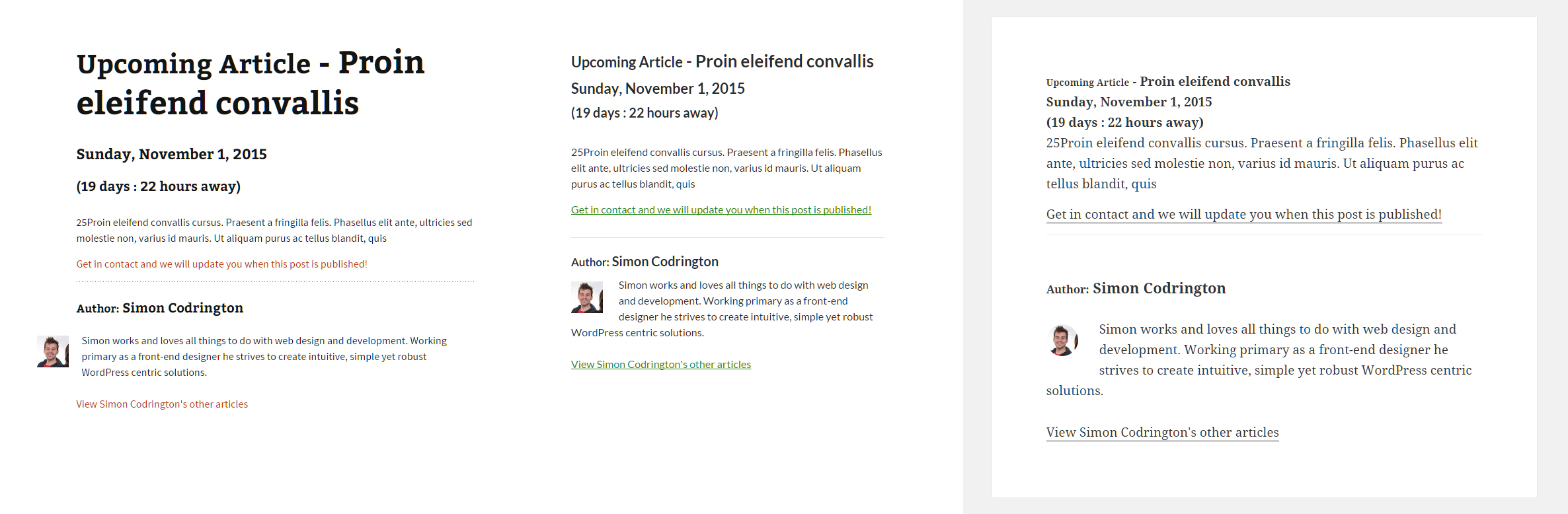
Throughout the plugin I've added several helpful actions and filters that can be used to extend the plugin. You can hook into these elements and change default values or output your own code to extend what is possible.
Here are the hooks that you can use
sc_upcoming_post_link_text
sc_upcoming_post_admin_form_start
sc_upcoming_post_admin_save
sc_upcoming_post_public_display_start
Besides using the action hook, you can also use a handy shortcode that you can use to output your post previews on any page.
You can use its simple form as below
//displays your upcoming post preview [upcoming_post_preview]The shortcode is basically a wrapper for our main output function so it supports the same attributes as when calling it from our display_upcoming_post_previews action. You can pass in these options:
If you wanted to display only a single upcoming post preview and know it's ID you can output it on your page by using the following.
//displays the upcoming post with the ID of 425 [upcoming_post_preview post_id="425"]
Now that you have an overview of how the plugin works and how you can use it to increase your viewers engagement with your site, you could extend this plugin and provide additional awesome features.
It's up to you what you might like to do but here are a few things you might want to look into.
Let me know if you end up using this plugin or use it as a base to build your own awesome plugin!
Source: Upcoming WordPress Blog Previews to Increase User Engagement
0 comments:
Post a Comment